
Account Help
What is my Sunnyvale Community Players Account?
How do I sign into my account?
On a smartphone, tablet, laptop, or desktop computer, open your web browser, go to online.vbotickets.com/sunnyvaleplayers, then click on the person icon, enter your email and password, and click the “Log In” button.
I Need a Password? I didn’t even know I had an Account!
That’s right. If you purchased a ticket or made a donation in the last decade, your account is probably set up.
On a smartphone, tablet, laptop, or desktop computer, open your web browser, go to online.vbotickets.com/sunnyvaleplayers then click on the person icon, click the “Reset Password” button.
Step 1

- Click on the Icon with a person in a circle
- Click on “Forgot your password” in the pop-up on the Login box and click Reset Here.
- Enter your email address at both prompt boxes.
- Click “Email Password Link To Me”.
- Keep an eye on your inbox for a verification email titled “New Password” from tickets@sunnyvaleplayers.org. Check your spam folder if it doesn’t appear.
Step 2
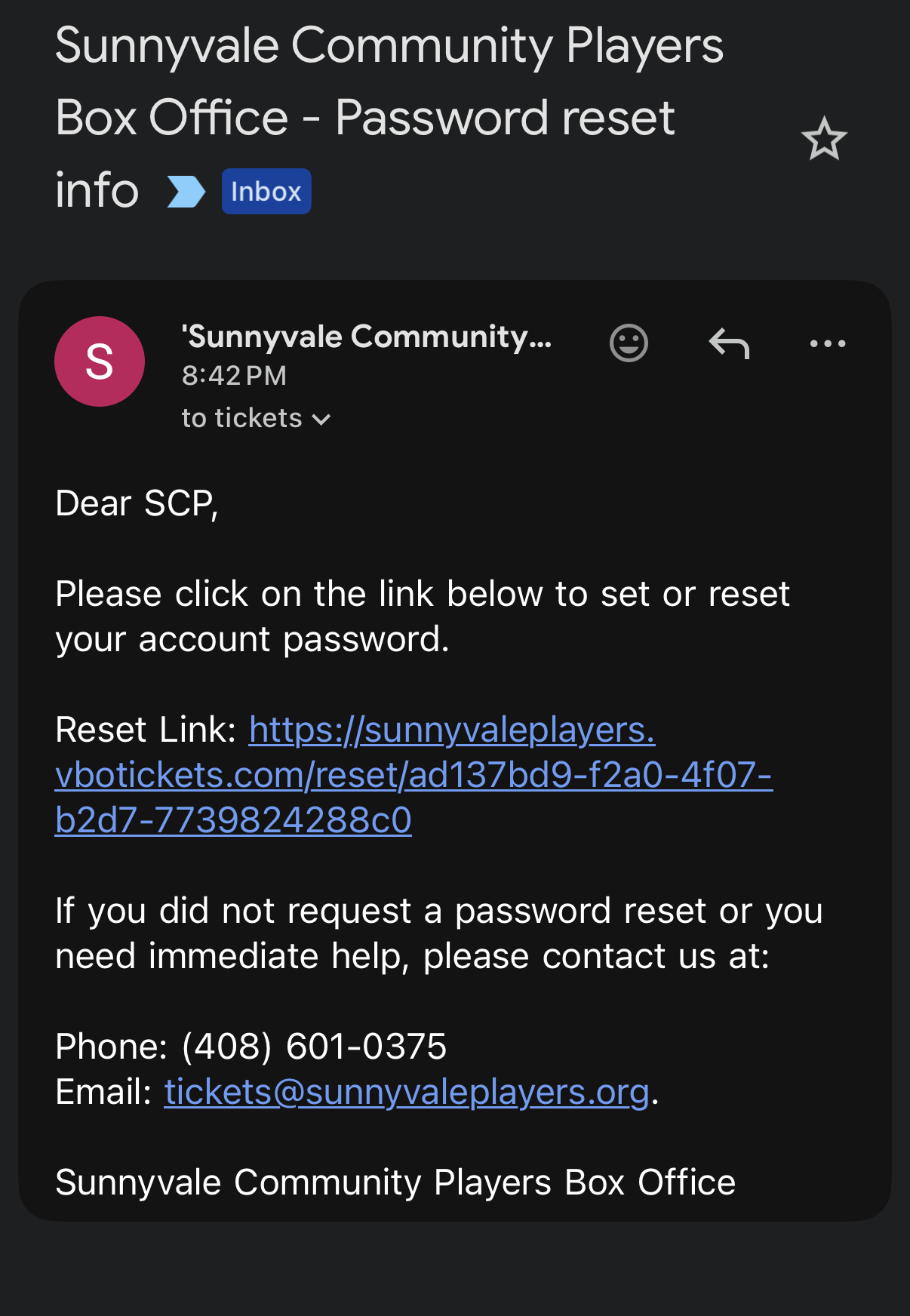
- Open the email from tickets@sunnyvaleplayers.org titled “New Password” within 12 hours and click “please click here to change your password.”
Step 3
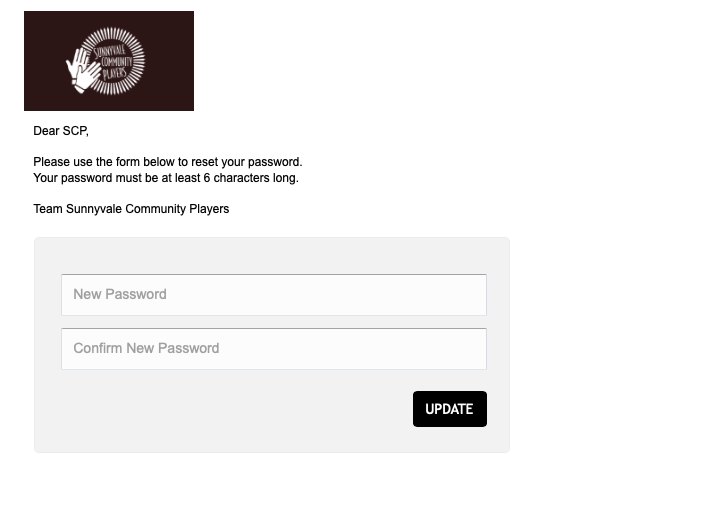
- Create a strong password. Re-enter it in the 2nd prompt box.
- Click “Change Password”. Use your email and new password to login.
Where Do I Find My Tickets? And how do I add to my digital wallet?
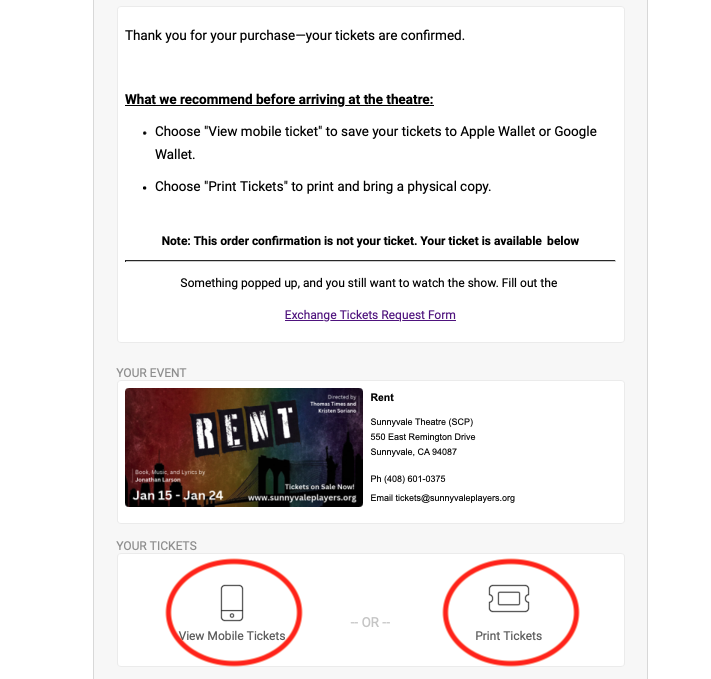
You will receive an automatic email immediately after purchase with your digital tickets. Check for “Confirmation #123456789” from noreply@vbotickets.org”.
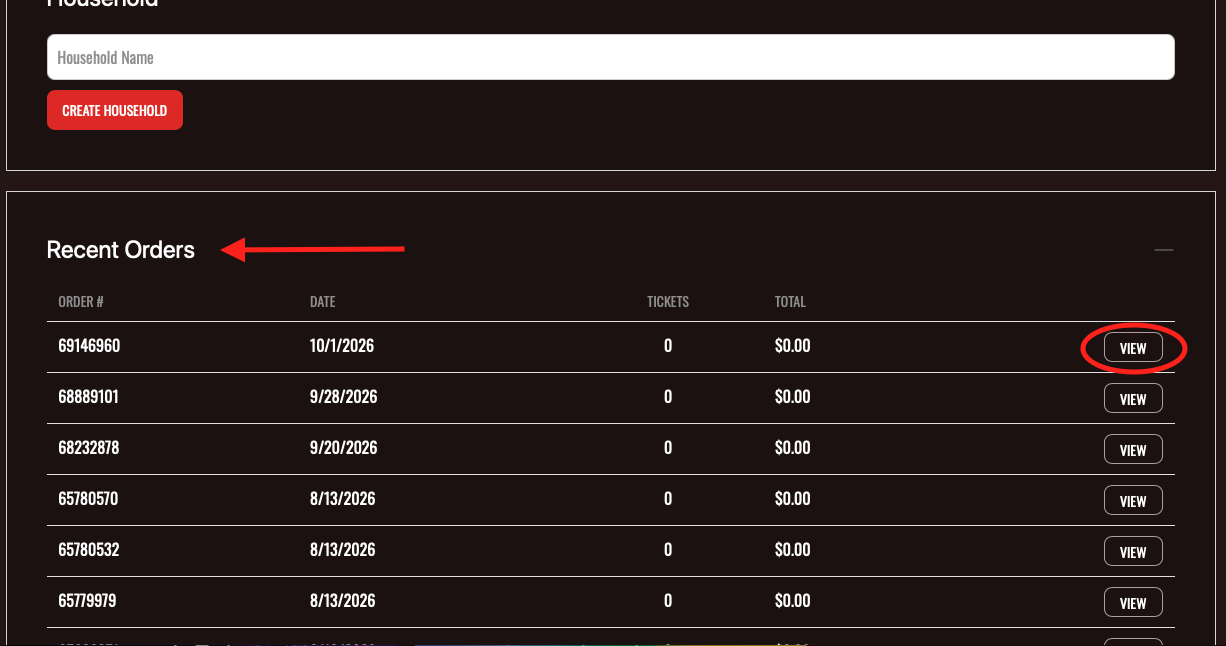
Access your tickets at any time by logging into your account.
Scroll down to “Recent Orders” then click on “View”. You will open the confirmation page, then click on either Add to “View Mobile Tickets” or “Print Tickets”.
Adding Your Ticket to Apple Wallet (iPhone)
To add your ticket to Apple Wallet, open your confirmation email on your iPhone and select either “View Mobile Tickets” or “Print Tickets” under the “YOUR TICKETS” section. On the E-Ticket page, tap the black Add to Apple Wallet button and then tap Add in the top-right corner of the ticket preview. If you have multiple tickets in your order, swipe through each ticket card (or scroll through each E-Ticket) and repeat this step for every seat so all of your QR-coded passes are saved in your Apple Wallet app, ready to scan at the theater door.
Adding Your Ticket to Google Wallet (Android)
To add your ticket to Google Wallet, open your confirmation email on your Android phone and select either “View Mobile Tickets” or “Print Tickets” under the “YOUR TICKETS” section. On the E-Ticket page, tap the Add to Google Wallet button and follow the on-screen prompt to save the pass to your Google account. If you have multiple tickets in your order, swipe through each ticket card (or scroll through each E-Ticket) and repeat this step for every seat so all of your QR-coded passes are saved in your Google Wallet app, ready to scan at the theater door.